
This checklist will help you conduct a thorough verification and ensure the quality of the proxies.
Step 1: Get a Trial Access
- The first and most important step is to request a trial period.
- Contact support and request a trial access.
- Wait until you are provided with test connection details (host, port, login, password, and if necessary, username and password).
Important! Free proxies found in open sources are often unsafe and can be used for data theft. A trial access from an official provider is the only correct way to test.
Step 2: Check Connection and Basic Functionality
Make sure the proxy server responds and you can establish a connection.
Use one of the following methods to check:
- Via Command Line: Run a prolonged ping to the proxy host.
- Via Browser or Software: Enter the proxy details in your anti-detect browser (e.g., Octo Browser) and click “Check Proxy”. The browser will try to connect to the host and determine the country of the IP address.

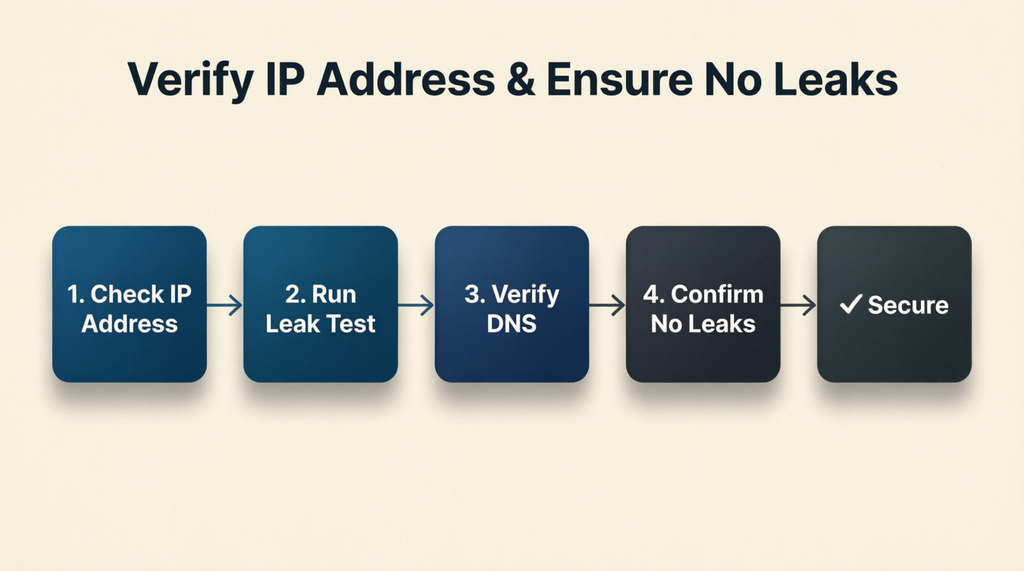
Step 3: Verify the IP Address and Ensure No Leaks
This is the most critical step. Your task is to make sure the proxy hides your real IP and does not leak information through DNS and WebRTC.
What to do:
- Record your real IP: Open a site like whatismyip.com without the proxy connected and write down your IP.
- Connect through the proxy: Enable the proxy in your browser or software.
- Check the IP: Open ipleak.net or whoer.net.
- Compare: Make sure the displayed IP differs from your real one and matches what the proxy provider shows.
- Check for DNS and WebRTC leaks: On the same sites (or on browserleaks.com), check whether your real IP or your provider’s DNS servers are being exposed.
If you’re using an anti-detect browser (Dolphin Anty, AdsPower, GoLogin), WebRTC is usually blocked automatically.
Step 4: Check Geolocation
Make sure the IP address corresponds to the country (and, if required, the city) specified in your task.
How to check:
- After connecting to the proxy, go to a site that shows detailed IP information, such as ipinfo.io. Compare the country, city, and region fields with what you ordered from the provider.
- Important note: Do not use the same service for geolocation checks that you use for speed or connection success testing. Separate tools for different tasks to avoid skewed results.

Step 5: Check Speed and Stability
The proxy should not only be stealthy but also fast enough for your tasks. How to check:
- Use a service like Speedtest.net, Fast.com, or one that is convenient for you.
- Run a speed test with and without the proxy to assess the speed drop.
- For long-term stability testing, you can use monitoring services like UptimeRobot or StatusCake.
Important! Speed directly depends on the internet connection speed of the agent. If the speed seems low, don’t get upset right away — ask support to change the agent, or do it yourself in the task settings.

Step 6: Check the IP Address “Reputation”
Even if the IP address works and hides your identity, it may be “spoiled” — used by malicious actors or already blacklisted in spam databases. High-security websites may block such traffic or show captchas.
How to check:
- Go to ipqualityscore.com through your proxy server.
- Enter your new IP address for verification.
- Pay attention to the “Fraud Score” indicator. It should be as close to zero as possible. A high score means that websites will treat you with suspicion.
- For additional verification, you can use services like MX Toolbox or DNS Checker to see if your IP has been added to spam databases.
Step 7: Final Test on the Real Target Website
The final and most important step — testing on the site you are buying the proxy for. IP checkers are always friendly, but your target resource may be much more demanding.
What to do:
- Set up a profile in your anti-detect browser as if you were working for real: select the country, set the language and time zone.
- Open your target site (Amazon, Facebook, marketplace, etc.) through the proxy.
- Try performing standard actions: search, logging into an account, adding an item to the cart.
Important: Evaluate not just whether the site opens, but the success of performing these actions. A 100% success rate in opening pages is meaningless if you get a captcha or an error on a critical page.
What to Do With the Test Results?
- All items passed successfully: You can be confident in the quality of the proxy and make your purchase with peace of mind.
- Issues found: Contact the proxy provider’s support. In your personal account, you will be able to adjust task parameters: country, rotation time, agent type (mobile, PC, hosting).
Remember: a high-quality residential proxy is the key to your stable, trouble-free work. Use this checklist to make the right choice.